Aether draws three kinds of terminal:
- Environment: your own persistent shell. It runs in one server-side
container with your member home mounted at
$HOME, so files, executables in~/.local/bin, and agent login state survive reconnects and new runs. It also mounts/run/aether-assistantand/opt/aether/aether-serverread-only for the assistant; a terminal created before that shows Restart your environment in the assistant panel. - A run's agent terminal: the agent's PTY in a Standard run, shown in the run's Terminal view.
- Run shells: extra shells in a run's container, listed beside the agent terminal.
Open your environment
From the CLI:
aether terminal
aether terminal --tab t2
aether terminal status
aether terminal stop
aether terminal exec <command>...
In the dashboard, select Environment in the header or its More
navigation menu (or press g then e). Before the container exists the
page shows Your environment starts
on first open with Open. Once it runs, the terminal fills the page and
Add terminal tab (+) in the tab strip opens another tab. The header
holds Save environment and Environment actions (Forward port,
Stop environment…, Reset to standard…); on a phone they sit at the
end of the tab strip. While nothing is saved, the header reads Installs
here reach agents after you save.
The first open says Starting your environment container until the shell attaches, and shows the server's own error if the start fails. Later tabs and tab switches reach a container that is already up, so they say Connecting to your environment. The terminal reconnects and restores its output when the page or network reconnects. Closing a tab only detaches it; opening that tab again reattaches to its shell.
The stream ack names the exact bootstrap byte count in its replay field,
including a boundary that falls inside one WebSocket frame. As each
frame-sized bootstrap operation arrives, the dashboard splits only the
boundary-crossing frame and starts one serial xterm write chain behind the
CSS-hidden surface; it does not retain the bootstrap until the full boundary
arrives or allocate a browser-sized buffer from the declared length. Only the
slice containing the exact final bootstrap byte is tagged replay-end; live
output and geometry stay in wire order behind xterm's write backpressure.
Terminal-generated replies and user input stay muted from the ack through
the final bootstrap write callback. Input may resume after that callback,
but the surface stays hidden until two paint turns and any saved viewport
restoration have settled; only then is the terminal revealed.
When a persistent terminal host is replaced, rebind cancels the old
bootstrap drain with its cancellation signal, drops the old socket, installs
the new handlers, and starts one fresh bounded bootstrap after cancellation;
it does not issue a second reopen. If an online wake interrupts an
incomplete bootstrap, the client cancels its parser and drain with the same
cancellation signal, drops that socket while keeping the terminal hidden, and
reconnects for a fresh hidden bootstrap rather than revealing a partial
prefix. A final replacement refusal settles the bootstrap gate before its
server error is shown. For a run terminal, this bootstrap is compact
current-screen state captured without scanning the retained archive; the
live view never fetches that archive.
Run one command
aether terminal exec runs one command in your environment without opening
a tab. It is for a script or a coding agent on your machine, which has no
terminal to type into:
aether terminal exec claude --version
aether terminal exec 'echo "$HOME"; uname -sm'
The arguments are joined with spaces and run by the login shell a tab starts
(/bin/bash -lc, or /bin/sh -lc in an image without bash) in your member
home, so $HOME and PATH are the ones a tab sees. Quote the command to
keep your local shell from expanding it first. A stopped environment is
started, as aether terminal starts it. The command has no terminal and no
input.
When the command ends, its stdout and stderr are written to yours and
aether exits with its exit code. When aether itself fails, it exits 1
and prints aether: <error> to stderr. Interrupting aether does not stop
the command, which may keep running until it ends or reaches the time limit.
The server enforces two limits. A call that passes either fails and returns none of the command's output:
10 minutes. The command is killed in the container, with everything it started. In an image without
setsid, only the command's shell is:CODEaether: rpc error -32603: terminal exec: the command passed the 10m0s time limit1 MiB of stdout and stderr together. The command is not stopped and may keep running until it ends or reaches the time limit. Redirect long output to a file in the environment and read the part you need.
CODEaether: rpc error -32603: terminal exec: exec output: output passed the 1048576 byte limit
Output is returned as text: bytes that are not valid UTF-8 arrive as U+FFFD.
The control-channel method is terminal.exec, listed in
local-gateway.md.
Terminal font
Every terminal draws in JetBrainsMono NFM, shipped as
web/public/fonts/jetbrains-mono-nfm-regular.woff2 and -bold.woff2, so
agent TUIs get their Nerd Font symbols at the cell width. xterm measures
glyphs once when it opens, so web/src/lib/term-font.ts opens a terminal
only when both faces report status loaded. Otherwise it loads both faces
and opens when they arrive, or after 2 seconds, or after a failed fetch, in
which case the terminal uses the platform's monospace glyphs. It does not
use FontFaceSet.check: Chromium answers true for a face that never loaded,
which opened terminals on fallback metrics.
Run control
A run's agent terminal is the Terminal view of the run: open a run from
the sidebar, the board or the palette, then pick Terminal in the view
switch ([ and ] cycle the views), the row under the run header. A
Standard run opens on it. Its Session view lists messages, notes and the
agent's tool calls; while the agent works it ends with what the agent is
doing now ("Reading src/billing.js", from its reported activity) and Live
detail is in the Terminal. with Open terminal.
An Enhanced run has no agent terminal: its server-side
PTY is the container's login shell (aether attach reaches it), and the
agent runs beside it over the Agent Client Protocol. Its Terminal view says
No agent terminal and offers run shells. The run's control lease is the
same one: holding it from the Session view (/ws/acp/<run_id>) is what lets
you answer the agent's permission requests.
Enhanced runs keep a Multiplayer strip below the view switch on every view. The controller and watchers appear by name with their member avatars, alongside Take control or Release, on one row unless the controls cannot fit beside the roster, as on a phone, where they wrap to a second line. A long roster scrolls horizontally; on narrow screens watchers show as avatars and Multiplayer as its icon. Multiplayer opens Details with shared notes and run facts. Run shells keep their own separate controls; opening a shell does not take control of the agent.
The run has one controller session at a time. A member needs
permission to message the run (the steer permission) to acquire it.
Viewing, presence, and run ownership by themselves do not grant input
access. A writable agent terminal or aether attach must acquire that
lease; read-only attaches may coexist. A second tab or connection from the
same member is a different session, not a second writer. Run shells have
separate, surface-scoped leases.
On a desktop, the owner's agent terminal asks for control automatically once the Terminal view is first shown, except for swarm workers. Opening the run on Session or Changes keeps the terminal a mirror, so reviewing a run leaves the lease free. A swarm worker is a run assigned work by an integrator; its terminal starts as a read-only mirror even for its owner, so merely viewing it never creates an orchestration hold. Use Take control to type, and Release to return to viewing. A deliberate per-run control choice survives same-tab navigation under the identity and authority fences below. Other members and phones start as mirrors.
The server grants an unoccupied lease only with the steer permission. A
write request that cannot acquire the lease is refused rather than silently
becoming a second writer. aether attach asks for control by default; use
aether attach --read-only <run> to watch deliberately. Clicking Take
control in the Terminal toolbar or the Enhanced run's Multiplayer strip
acquires an unoccupied run. An occupied click reports
run control is held by another session and leaves the controller in place.
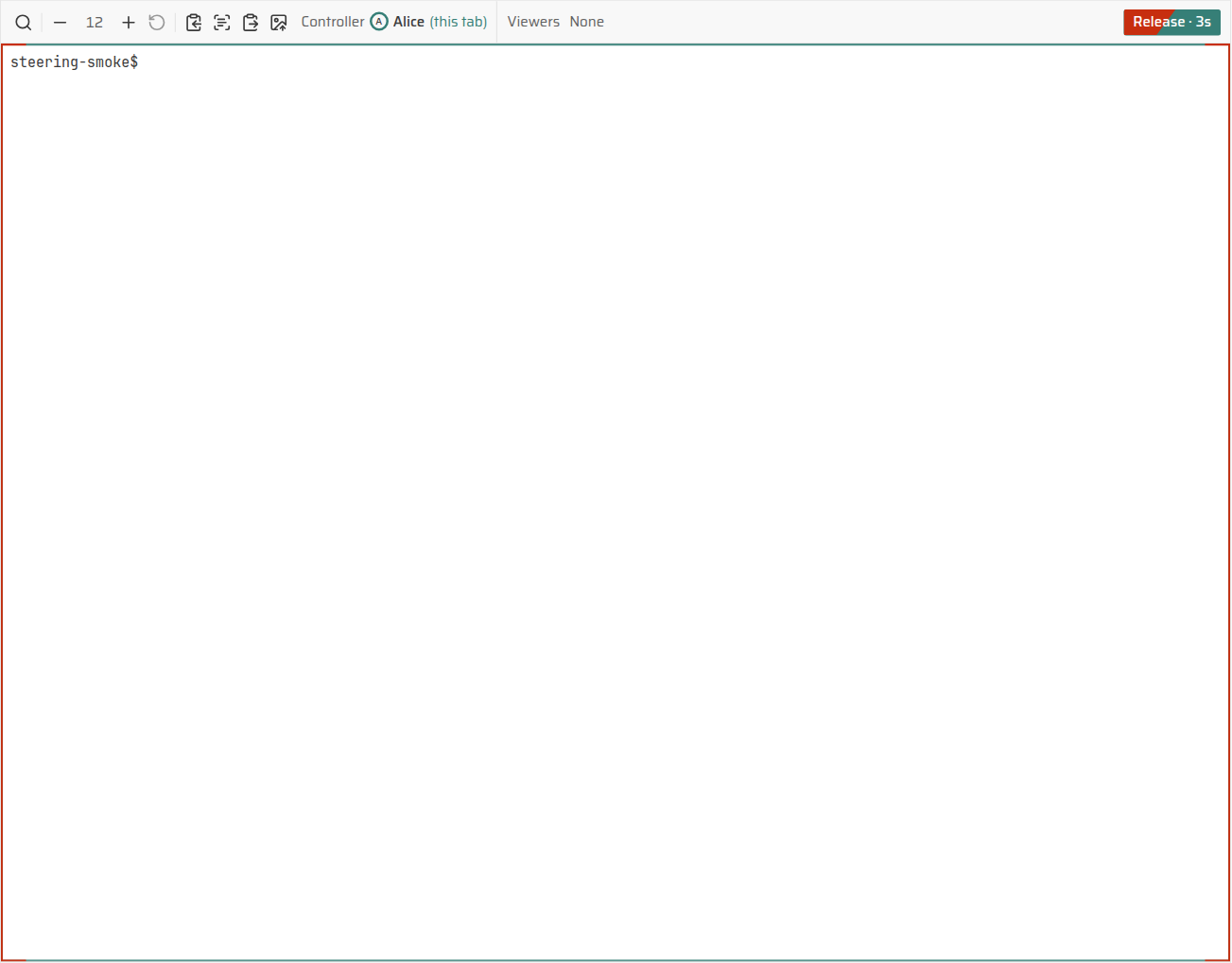
To request an occupied run, hold Take control for five seconds with the pointer, touch, Space, or Enter. A red fill with a forward-slash leading edge advances across the button; covered and uncovered text retain separate contrast. The holder sees the same fill on Release. A Standard run also traces red over its terminal's teal border from the side midpoints toward the top and bottom centers. Releasing early, moving off the button, pressing Escape, or leaving the tab cancels the hold.
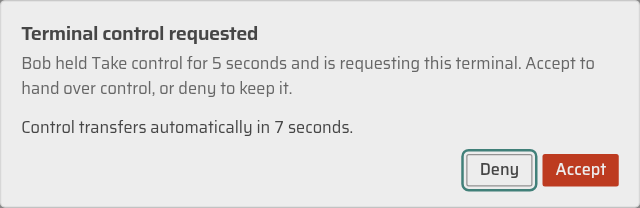
After the full hold, the holder gets a focused dialog naming the requester. Deny keeps control; Accept transfers it immediately. With no response, the server transfers control after seven seconds. Releasing the button after the full hold does not cancel the request. The server cancels a pending request if either participant disconnects, authority changes, or the target lease is released or replaced. Progress never grants input before the server acknowledges the new controller. The dialog returns focus to the interrupted terminal or composer when it closes.

Control is tied to the logical terminal session. When a controller
disconnects, the server holds its lease for a 15-second reconnect window.
The same tab or connection session can reclaim the lease during that window.
The disconnected session cannot write while it is away. A different tab
cannot inherit it without an explicit takeover, and after the window expires
a normal acquisition can win. A dashboard tab keeps one control session per
run until the tab reloads, or until the signed-in identity, the server's
event log (a fresh data directory restarts it), your authority over the run
(role, run owner, protection, or the workspace's Who may message others'
runs setting), or the run's created_at changes. Returning to a run
terminal in the same tab therefore attaches as the session that held the
lease, and the server hands a disconnected lease back to it without a
takeover. Until the old connection's disconnect reaches the server, that
lease still reads as occupied, so the tab keeps asking for it through the
reconnect window before it becomes a mirror. After the window, the return
acquires control only if the run is still unoccupied.
Control changes are acknowledged on the existing attach WebSocket. A
dashboard terminal sends a text frame such as
{"type":"control","request_id":17,"write":true}. Occupied takeovers use the
five-second hold and seven-second review exchange described in the
attach protocol. The server answers on
that same stream with
{"type":"control","request_id":17,"ok":true,"has_control":true, "control_session_id":"...","control_generation":8}. Every result includes
has_control, even when false; refusals also carry code and error.
A refused duplicate acquisition does not revoke a lease the session still
owns. An unsolicited lease revocation is also a type:"control" frame, but
has no request_id; it reports the exact revoked generation and
control_session_id, and the displaced interactive session remains a
read-only mirror. Its revocation_reason identifies an actual lease
replacement (takeover), lost messaging authority (permission), or other
fencing (revoked). A successful voluntary-release acknowledgement has no
revocation reason. The same-socket notification is used when an interactive
attach loses the steer permission: the terminal stays open and input is
disabled. Raw legacy attaches retain the named close (1008, steer permission withdrawn) instead. Input frames carry the current
control_generation, and stale input is rejected. Taking or releasing
control therefore does not reconnect or replay the terminal. The terminal
remains at its current screen while the lease changes. A successful takeover
fences the old writer; its input is rejected and its session becomes a
read-only mirror. Invalid, stale, or cross-member requests are refused
without changing the current writer.
When this run is a swarm worker, taking writable agent or shell control also
sets a durable orchestration hold for that worker. The hold survives
reconnect expiry, disconnect cleanup, protection fencing, and a server
restart; integrator messages remain visible and durable but cannot reach the
agent's input while the hold is active. Release control on the worker's
task in the swarm page clears the hold, even after the lease, PTY, or worker
attempt has disappeared; it must name the current durable takeover
generation (mission.worker.release), and a stale generation is refused.
The server rechecks the releasing member's current steer authority and
never evicts a different member's live writer while releasing. A failed
release leaves both the human lease and the hold in place. This hold changes
orchestration eligibility only; taking control never grants account-use
authority or affects unrelated workers.
Only the run owner or an administrator can enable protection. Enabling protection immediately fences the current controller and cancels every queued message to the agent. While protected, other members cannot message the run, and the owner or an administrator must acquire control again before typing. Disabling protection does not restore a controller or a cancelled message.
The Terminal view's toolbar
The toolbar holds the terminal tabs (shown once a run shell exists), Tools
and, on the right, who controls the agent terminal: You control, Alice
controls, You control in another tab when your own other session holds
the lease, or Nobody controls, followed by Take control or
Release. A name read before a control change, while the attach is not
live, or after a failed presence read carries (last known). Before the
first answer it reads Checking control…, and Control unknown if
presence cannot be read, with Presence unavailable: and the server's
error on the line under the toolbar. The connection word (Connecting,
Reconnecting, Offline) shows only while a live run's attach is not
live; a finished run reads Container removed · read-only (Container
stopped · read-only for a kept container) in muted text instead.
Release is a quiet button, so it never competes with the run's own
action. A
member without the steer permission sees You can watch this run but not
type in it. under the toolbar. In control and Watching are also
listed in the run's Details panel.
Live local ownership is shown by You control and a teal Release. Teal light glows along the top edge of the terminal viewport only, never the toolbar, find bar, or UI above it: a uniform bar with a soft glow spilling downward. After this tab acknowledges live input, the light pours leftward from the right end, under Release, then dims to half strength and slowly breathes. An acknowledged voluntary release drains it back to the right. Both decelerate toward their endpoints. While another member holds Take control, the light returns to its moving strength (70%) and red spreads leftward from the right end over the teal. An explicit server takeover notification for this session's current lease turns the light red, then drains it to the right over about two seconds. A completed hold has already made the light red; it stays red through the handoff. Presence names never trigger takeover feedback. Input is fenced immediately; the exit animation is decoration, not authority. Replay, recorded history, disconnects, permission loss, and other fencing hide the light without takeover feedback. A fresh read-only mirror has no light. Reduced motion makes ownership changes instant and replaces moving takeover fills with static red indicators and countdowns. Resizing preserves the viewport boundary, and a rapid control change reverses from the visible point.
Presence refreshes on mount and every ten seconds while the run is open, and after acknowledged control changes. A stalled refresh times out after 15 seconds; later polls retry automatically. Presence never decides who may type.
Messages and notes
People reach the agent in the run's Session view and talk to each other
in its Details panel. Both read and write the run's durable, attributed
messages (run.room.list, run.room.post).
The Session view's composer sends a message to the agent: type it and press
Enter or Send; Shift+Enter inserts a newline. On a touch screen
Send is the only way, and Enter inserts a newline. Attach files
(+) attaches files of any type. A message from the current controller session, with its current
lease, is delivered to the PTY at once; the composer says so (Sends to the
agent's terminal.). The owner of a run nobody controls gets the same: Send
takes the lease first, then sends. A message from anyone else waits 45
seconds (Delivers in 45 s unless the controller decides sooner.), with
the countdown on its row (Delivers in
32s). A send the server refuses keeps the draft and shows the server's
error above the composer. An unsent message and its images stay with the run
while you open another run or page, until the page reloads; a send still
running when you return keeps the composer locked until it settles. During the
countdown the controller sees the
message in Details > Needs you with Approve and Deny; anyone else
who could take control sees Take control to decide. When the timer
expires Aether attempts delivery. The row then reads Sent (sent),
Not sent (not_sent), Delivery uncertain (uncertain), Denied
or Cancelled. Sent means the PTY write was accepted, not that the
agent read or answered it. Retries reuse the message identity, so they never
create a second request.
Send to agent in the Changes view sends your comments on the diff as one such message, under the same rules: at once with the lease, after 45 seconds without it.
A reported task outcome leaves an interactive run open: send a follow-up here or type into its native terminal without reopening. Close ends the session. When the viewer cannot message the agent, the composer instead explains why: This run has finished. (with Reopen it from More to message the agent. when the retained run can be reopened), The agent is still starting., This run is protected: only its owner or an admin can message the agent., or You can watch this run but not message the agent.
Details lists, in order: Needs you (every pending request with the
actions that answer it; when the run needs you for another reason, such as
a turn that ended without a report or a success ready for review, one card with that reason and the
header's action; otherwise Nothing is waiting on you.), Agent
messages (agent-to-agent mail to or from this run, shown when there is any
or the run belongs to a swarm), Notes and the run's facts. A note is for
people only: the agent never sees it. Type it in Add a note for people on
this run and select Add; it is posted as a comment. A question
message from a teammate appears in Needs you for the run owner with a
reply field; Reply posts a correlated reply. Every question also
appears under Notes, marked question. The owner's own question shows
in the Session view as a note with no action. The run snapshot counts
unanswered questions from anyone but the owner, so the run is in the owner's
Needs you before anyone opens it. The question does not change the run's
wire status.
Message attachments use the terminal upload rules: each message may include
up to eight files. PNG, JPEG, GIF and WebP images of at most 8 MiB go through
terminal.image; any other file of at most 64 MiB goes through
terminal.file. Aether stores the bytes in the home the run's container
mounts, then records the generated container-visible path with the message.
A local filesystem path from clipboard text is not an upload. An attachment
is a persistent file reference, not a second input channel; messages still
reach every supported agent as serialized text written to its run PTY.
Aether does not require or provide a universal inbound agent hook.
The phone opens the agent terminal as a read-only mirror, including a run owned by that member; tap Take control before the keyboard can send input. Phone terminals follow the already acknowledged PTY size and do not resize the shared session. Details opens as a bottom sheet over the terminal.
aether attach remains a raw terminal stream: it consumes exactly the
replay byte count announced by the ack before treating following bytes as
live. It does not use the dashboard's segmented, ordered xterm transaction or
hidden surface. A writable CLI attach mutes its input by discarding
keystrokes that arrive before the announced replay has been written to your
terminal; they are dropped, not deferred. Dashboard xterm may answer
device-attribute and colour queries encountered while parsing replay, but
the replay gate mutes those terminal-generated replies along with user input
until the final replay callback; they do not reach the server. The CLI is
raw and has no xterm parser, so the announced replay and input discard rules
above remain in force.
Run shells
A run shell is an extra shell in the run's container, started by a member or
by the agent. + Shell in the Terminal view's toolbar calls
dev.terminal.start and opens it as a tab after Agent, focused and
already yours to type in; an Enhanced run, which has no Agent tab, lists
only its shells. The tabs appear once a shell exists; on a phone they are one
menu. Displaying, selecting, reconnecting or showing a hidden shell never
starts a process. The same compact replay, focus handling and phone panning
are used as for the agent terminal.
A shell the server named (tab-1, tab-2) reads Shell 1, Shell 2.
The number stays with that shell until it ends, so closing another shell
never renumbers it. A shell the agent started keeps the name the agent gave
it and carries the agent's glyph; hovering the tab says Started by the
agent, and the phone menu writes that under the name. dev.terminal.list
reports it as started_by, run_agent or member. The dashboard reads that
list every two seconds while the Terminal view is showing and every ten
behind another view, so a shell the agent starts appears without a reload.
At most four shells started by people and four started by the agent can run
in a run at once. The two are counted apart, so the agent's shells never stop
a member opening one. At the members' limit + Shell is dimmed beside At
most 4 shells, and its hint (on a phone, the line under New shell) says
to stop one; dev.terminal.start refuses with shell limit reached: people have 4 shells running in this run; stop one to start another. An ended shell
does not count: it stays listed until a new one from the same starter needs
its place, oldest first. Shells can open only in a running or
needs-attention run that is not paused; a refused open says You can view
this run but not open a shell in it. The server assigns each shell a
stable terminal_id and an incarnation; every attachment and mutation
names that exact incarnation. An ended or replaced process is never
implicitly rerun.
Close a shell
Each tab has a close button, and Delete or Backspace on a focused tab does the same. On a phone the same choices are in Shell actions. Closing a running shell asks which you mean:
- Hide, keep running detaches this viewer only. The process keeps running in the run container and still counts toward the limit, so the toolbar shows 1 hidden (a phone lists Hidden, still running) with Show Shell 1 to bring it back. Switching to Agent or another view, and disconnecting, detach the same way.
- Stop shell ends the process and removes the tab. It takes the shell's lease for the stop and returns it. When someone else controls the shell, Stop Shell 1? names them and asks first.
A shell that ends while you have it open keeps its tab, marked with its state (Shell 1 · exited), and the line under the toolbar gives its exit code and reason; its close button removes the tab at once. A shell that had ended before you opened the run gets no tab, and a closed one does not come back after a reload.
Who can type in a shell
Each shell has one controller at a time, with its own lease. Watching a shell takes nothing, so the agent can go on driving a shell you are only reading. Control comes to you when you use the shell:
- A shell you open starts under your control.
- In a shell nobody else controls, the first key you press takes control, and what you typed while the server answered is sent once it does. Focus and mouse reports that the terminal sends by itself are not typing and take nothing. A lease your own closed page left behind, after a reload or on a phone that went to sleep, is taken back the same way.
- The toolbar then reads You control beside Release. Leaving the Terminal view releases the shell for you, and switching to another terminal tab or closing the page lets the lease lapse after the 15-second reconnect window, so the agent is not locked out of a shell you stopped using.
- When the agent or a teammate controls the shell, the toolbar names them (The agent controls, Alice controls; on a phone, Alice controls this shell. under the toolbar) beside Take control. Take control of this shell? asks first, and the takeover fences the generation it observed. The agent can take a shell nobody controls and can never take one from a person.
A swarm worker is the exception. There, shell control also sets the durable orchestration hold described above, so nothing takes it for you: the shell stays a mirror until Take control, the line under the toolbar says why, and Stop shell waits for control.
Release releases only that shell's lease. It does not release agent terminal control or clear a durable swarm hold; use Release control on the swarm page for that separate decision. Input, paste, mouse sequences, resizing and stop all use the acknowledged surface control session and generation. Failed mutations are shown and are not automatically retried.
All shell attaches follow the shared grid, including desktop watchers. Only
a confirmed writer sends an explicit fenced resize after acquisition; phones
continue following the acknowledged grid even while controlling input. The
attach header carries incarnation; its ACK must name the same
terminal_id/incarnation and advertise server_owned_responder. The
server answers PTY protocol queries exactly once. The dashboard suppresses
xterm's query responders through parser handlers (including mixed OSC colour
queries/setters), not by guessing which outgoing bytes are replies.
Rendering, alternate-screen state, Unicode, keyboard, paste and mouse input
remain active; output parsing is not a reason to discard user input. This
policy applies only to shells; agent terminal replay gating is unchanged.
Take a screenshot (in Shell actions) calls the terminal screenshot API and captures the server's actual emulator state, without needing a connected viewer or control, then says Captured <id>. Open Captures to keep it. Its total budget is 90 seconds, including first companion startup; rendering itself is bounded to 30 seconds. Cancelling the request closes only its isolated renderer, not the app's browser session. Open Captures… (in the run's More or the toolbar's Tools) to inspect transient captures and explicitly retain them with verification notes. Taking a screenshot alone does not retain it.
SSH and editors
A live run is also an ssh host. Run this once on your computer:
aether ssh-configwrote /home/you/.ssh/aether_config
added an Include line for it at the top of /home/you/.ssh/config
ssh <run-id>.aether now opens a shell in that run. scp, sftp, rsync and editors take the same host name.~/.ssh/aether_config holds one block, which you should not edit: running
the command again rewrites it.
Host *.aether
  HostName %h
  ProxyCommand /usr/local/bin/aether ssh --stdio '%h'
  UserKnownHostsFile "/home/you/.ssh/aether_known_hosts"
  HostKeyAlias aether
  StrictHostKeyChecking yes
The only change to ~/.ssh/config is the Include line, placed first so a
Host * block of your own cannot set HostName, ProxyCommand or
ProxyJump for a run before it. The block
names the aether binary by path, so run aether ssh-config again after
moving it. aether ssh [ssh options] <run-id> [command] passes the same
options to ssh itself and needs no configuration.
Use OpenSSH 9.6 or later on your computer, or an older build your
distribution has patched for CVE-2023-51385; ssh -V prints the version.
ssh runs a ProxyCommand through your shell, and before that fix it put
any host name into the command unchecked, so a crafted *.aether name in a
link or a git submodule URL could run a command on your computer. See
security.md.
aether ssh-config refuses a home directory whose path contains ", %,
${, *, ?, [ or \, with
cli: an ssh config cannot name "<path>": ssh reads " % ${ * ? [ and \ in a path as syntax.
No escaping of those works on every OpenSSH.
The host name is the run id plus .aether, for example
run-gejd5cbk74.aether. It reaches the server your CLI is linked to, the
default link, over the connection every other command uses: a tailnet, an
SSH key or an edge.
What a session runs
| You run | In the run's container |
|---|---|
ssh <host> |
A login shell in the checkout, /workspace: bash -l, or sh -l in an image without bash, as a run shell starts. |
ssh <host> <command> |
The command, through bash -c or sh -c. Its output and exit status come back unchanged, with no banner. |
scp, sftp |
Aether's own SFTP server, so the image needs none. Relative paths are in the checkout. |
ssh -L, -D, -W |
A connection to a port on the run's own loopback: localhost, 127.0.0.1 or ::1. Any other destination is refused. |
Every process runs as the container's user with the container's environment,
like a run shell. ssh -t and a plain ssh <host> get a terminal, and
resizing your window resizes it. TERM, LANG and LC_* come from your
side; other SendEnv variables are refused. Several sessions can share one
connection (ControlMaster).
scp -O and rsync run scp and rsync inside the container, so the image
has to have them; the standard image has scp and no rsync. Agent
forwarding, X11 forwarding, remote forwarding (ssh -R) and signal
requests are refused.
A session's processes end with it. When its command exits or the connection drops, everything the session started is stopped, background and detached processes included. Start what must outlive your connection from a run shell (+ Shell) or through the agent.
Pausing the run freezes its SSH sessions with everything else in the container. The connection stays open and carries on when the run resumes; until then a new session or forward is refused. A session dropped while the run is paused is stopped when it resumes.
One run takes 16 SSH connections at a time, at most 8 of them from one member. One connection takes 10 sessions and 64 forwarded connections.
A run keeps the helper it was created with. File transfer and port
forwarding run entry points of the Aether binary mounted into the run's
container, and that mount is fixed when the container is created. A run
created before the server was upgraded to a version with these entry points
still takes ssh <host> and ssh <host> <command>, but scp, sftp,
forwarding and therefore editors fail there, with the old binary's own
answer (see the table below). Relaunching resumes the same container, so
launch a new run to use them.
Who can connect
Exactly who can open a writable run shell: a member with steer on the run
(teams.md) who owns the run's agent account or has been
given it (Account sharing), while the run is
running or needs-attention and not paused. The server checks again every
three seconds and closes the connection once the member may no longer open
it or the run has finished. When the check itself cannot complete three
times in a row, the connection is closed too. Each
time a member connects to a run they have no other SSH connection to,
Activity shows Connected over SSH beside their avatar. A connection
that cannot be recorded there is refused.
A refusal comes from aether ssh --stdio, on stderr, before ssh's own
Connection closed by UNKNOWN port 65535:
| Message | What happened |
|---|---|
aether: ssh into <run-id>: run not found |
No run has that id on the server the CLI is linked to. |
aether: ssh into <run-id>: permission denied: run is protected: only its owner or an admin may steer |
The run is protected and is not yours. The other steer refusals read the same way. |
aether: ssh into <run-id>: permission denied: member <member-id> has not shared their account with you |
The run uses that member's agent account. |
aether: ssh into <run-id>: scheduler: the run has no live environment: the run is paused |
Resume the run. A finished run names its status and says its container is gone. |
aether: ssh into <run-id>: you already have 8 SSH connections open to run <run-id>, the most one member takes |
Close one of yours. |
aether: ssh into <run-id>: run <run-id> already has 16 SSH connections open, the most one run takes |
Close one, or ask a teammate to. |
aether: "<host>" does not name a run: a run id holds only lowercase letters, digits and hyphens |
The host is not a run id plus .aether. Nothing was sent to the server. |
start the port forwarding relay: the helper exited 125: dev-exec: expected run|run-pipe <key> <claim> <argv...> or control <key> <exec-id> <claim> <action> [grace-ms]: ssh: handshake failed: EOF, or the same dev-exec: expected … line from sftp or scp |
The run's container was created by a server without ssh file transfer and port forwarding. Launch a new run. |
aether: not linked; run aether link <addr> |
This computer's CLI has no server yet. |
ssh: Could not resolve hostname <run-id>.aether |
aether ssh-config has not been run here. |
Swarm workers
Working in a swarm worker over SSH takes control of it, as Take control on its terminal does. Every shell, command or file transfer you start there sets the worker's durable hold described under Run control: its integrator cannot steer it until the hold is released, with Release control on the worker's task in the swarm page or Release on the worker's own terminal. Port forwarding alone sets nothing. Disconnecting does not release the hold, and releasing it ends no session that is still open.
You are told when you connect. ssh prints this line, from
aether ssh --stdio, before the session starts:
aether: this run is a swarm worker: a shell, command or file transfer here takes control of it, and its integrator cannot steer it until control is released on the swarm pageThe Open in editor… dialog shows Connecting takes control of this swarm worker for such a run.
Editors
Open in editor… in a live run's More menu has a button per editor and the two commands above. It is not offered on a phone, for a finished run, or to a member who may not control the run.
| Editor | Connect from the editor | Link the button opens |
|---|---|---|
| VS Code, with the Remote - SSH extension | Remote-SSH: Connect to Host…, then <run-id>.aether |
vscode://vscode-remote/ssh-remote+<run-id>.aether/workspace |
| Cursor | Remote-SSH: Connect to Host…, then <run-id>.aether |
cursor://vscode-remote/ssh-remote+<run-id>.aether/workspace |
| Zed | Connect New Server, then ssh <run-id>.aether |
zed://ssh/<run-id>.aether/workspace |
An editor installs its own server in the container on first connection, so the run needs:
- A glibc Linux image. The standard image is one. These servers are built for glibc; check your editor's requirements before attaching to a musl image such as Alpine.
- A writable home. A run's home is its launcher's persistent home
(environment-home.md), so the server
(
~/.vscode-server,~/.cursor-server,~/.zed_server) is downloaded once and reused by that member's later runs. A teammate who attaches to your run installs their editor's server in your home. - Outbound network from the container, where the editor downloads its server.
Because a session's processes end with it, an editor that loses its connection starts its server again when it reconnects, and whatever was running in the editor's own terminals is gone.
Set up agents and GitHub
The Agents page and the onboarding wizard set up an agent in three steps. In step 2, Install and log in, the Environment terminal is embedded on the page with the agent's login command typed into it (or its install command, when the dashboard cannot install the agent itself); press Enter to run it. Step 3, Check, re-reads the agent and shows Installed and Login found. Login state lives in your home, so it needs no Save environment.
Admins do not need this terminal for GitHub setup. Use Settings → GitHub → Connect GitHub, or Onboarding → Repository → From GitHub → Add GitHub repository. Copy code and open GitHub opens the authorization page; enter the code, approve, and return to Aether. Completion automatically sets up native Git and signing. Choose a repository, Review repository, then Use repository to accept its actual revision. Later Settings → GitHub → Add repository reuses the connection. See the browser walkthrough and recovery.
Collaborators retain Onboarding → Agent → GitHub → Connect GitHub, which
embeds the terminal and types gh auth login. Finish the device login in
your browser, then I've logged in completes native setup. GitHub access,
agent vendor login, and edge/server sign-in are separate. See
Environment prerequisites and signing details.
Sign in to agents
In the dashboard, click the OAuth URL printed in the terminal. For loopback
callbacks, Aether starts the local forward before it opens the authorization
page. In the CLI, run aether forward terminal <callback-port> before
completing the browser flow. Device-code logins need no forward, gh auth login --web among them: gh prints a one-time code and a URL you open on
your own machine, and nothing calls back to the terminal. Login state under
your home is available to later runs without saving the environment.
Save your environment
Install system tools and toolchains in your environment, then select Save environment on the Environment page; it confirms with Saved - new runs use this environment. The same actions are available from the CLI:
aether env save
aether env reset
Saving pauses the terminal for the few seconds Docker needs to commit it.
New runs and workspace shells use the saved image; aether env reset stops
the environment, destroys its container, removes that image, and makes the
next open use the standard image. See environments.md for
image selection and persistence.
Stopping and resetting are separate, each behind its own confirmation.
Stop environment… does what aether terminal stop does: the container
stops and your home files, your saved image, and the container's unsaved
changes remain, so a later open starts it again. Reset to standard… does
what aether env reset does, and is offered only once you have a saved image
to discard. A failure is
reported in the dialog that caused it.
Keys
These work in every terminal Aether draws - your environment, a run's agent terminal, and a run shell - and only in the terminal that has focus, because the terminal itself claims them before the shell sees them.
| Key | What it does |
|---|---|
Ctrl+Shift+C |
Copy the selection. A plain Ctrl+C copies too when text is selected, and interrupts when none is. |
Ctrl+Shift+V |
Native paste on Windows and Linux. Plain Ctrl+V is native too; on macOS use native Cmd+V. |
Ctrl+Shift+F |
Open the find bar. Enter goes to the next match, Shift+Enter back, Esc closes it. |
Ctrl+= / Ctrl+- |
Grow or shrink the terminal font, 8px to 32px. Ctrl+Shift+= grows too, since that is how a keyboard without a numpad types Ctrl++. |
Ctrl+0 |
Back to the default 12px. |
Cmd, or the Super/Windows key, works as well as Ctrl for the zoom
keys. The font size is one preference across every terminal and survives a
reload. Find searches the focused terminal's bounded live scrollback; while
reading a run's history, it searches the already loaded recorded pages and
frozen screen rows instead. It does not fetch the entire archive to search
it. Scroll upward in a run terminal to read older output in the same pane.
PageUp and Home also enter reading mode; Shift+PageUp explicitly opens
recorded output even when an alternate-screen application owns ordinary
scrolling. While reading, arrows, PageUp/PageDown and Home navigate;
scrolling down to the bottom or pressing End returns to live output.
Ctrl+Shift+= is accepted for zoom, but Ctrl+Shift+- remains the shell's
Ctrl+_ (readline undo or a vim keymap switch), as does a shifted Ctrl+0.
The zoom shortcuts normally cancel the browser's own page zoom; if a browser
keeps its accelerator, the page may zoom too.
Native paste is deliberately left to xterm and the browser for those
keyboard shortcuts; it does not depend on the asynchronous
navigator.clipboard API. That matters on Windows when clipboard-read
permission is denied. When image upload is enabled, a native paste
containing actual image file data is handled by the terminal's image paste
listener; ordinary text remains native terminal input. On macOS, Cmd+V is
the native paste shortcut.
A paste reaches the agent as one block rather than as the Enter presses its newlines would otherwise be, because the terminal is told the session has bracketed paste on. An agent sets that mode once when it starts, long before you open the terminal, so the server tracks it - along with the cursor, autowrap, and mouse reporting - and restores it ahead of the replay. Without that, a terminal opened hours into a run would disagree with the agent about how a paste arrives, and only the agent could tell.
The toolbar's Tools menu has Find (Find in recorded output while reading history), Smaller text, Larger text, Reset text size, Copy selection, Copy screen, Paste and Upload image…; a run's terminals add Captures…. Under 768px the menu opens as a bottom sheet. Copy screen copies the rows currently on screen, which is how to copy without a drag selection - a touch screen has none. Copying an empty screen says so. Paste first uses the browser clipboard API to look for an image and then falls back to text. If no usable clipboard read API remains, or its reads are denied, it shows Paste unavailable: with the reason, telling you to use the native paste shortcut or allow clipboard access. Copy uses the same API with a selection fallback; if both routes fail it shows Copy unavailable rather than silently dropping the copy.
On a touch screen
A soft keyboard has no Esc, Tab, Ctrl or arrows, and an agent TUI needs all
four. Below the terminal, whenever it accepts input, is a key bar: Ctrl,
Esc, Tab, the four arrows, Enter and Ctrl+C. They send
exactly what those keys send. Ctrl is a modifier rather than a held key:
tap it, then type or tap one more key, and that key arrives as its control
code - Ctrl then d is Ctrl+D. It covers the letters, space, and
@ [ \ ] ^ _, applies to one key and then releases; a key it does not cover
is sent as itself and leaves Ctrl armed for the next one.
A run's terminal is sized by the people controlling it: the PTY is the
smallest window among them, so nobody's screen is reflowed past what it can
show. Watching it read-only imposes nothing - except when you are the only
one attached, where there is no other screen to protect and the terminal
follows your window the way ssh does. A second attach ends that, and the
size is recomputed without you.
On a phone every terminal - a run's agent terminal, its shells, and your environment - keeps the session's existing size. Swipe vertically or horizontally to reach parts of a desktop-sized grid that do not fit on the phone, including an agent's input prompt near the bottom. The viewport initially reveals the cursor and keeps it visible while you type or the keyboard reduces the available height. Panning pauses that following until you tap or focus the terminal or type again.
In a run's normal buffer, dragging downward first reveals the top of the live grid, then continues into recorded history. Swipe toward newer output to return live at the bottom. An oversized alternate screen can be panned the same way, without entering history. When the grid fits vertically, alternate-screen scrolling remains with the running application. Horizontal drags remain native when the grid cannot pan in that direction. The phone follows a desktop viewer's resizes; watching, controlling, panning and opening the keyboard never change the shared PTY size.
Tools scrolls when the keyboard leaves too little room for every action. Closing it restores that space to the terminal.
On a phone every run - including one you own - opens as a read-only mirror. On desktop, an owner's unoccupied agent terminal may already have acquired control; swarm workers start as mirrors on both. Take control is a tap. While it is a mirror the terminal takes no input, so tapping it does not raise the keyboard. A run shell nobody else controls is not a mirror, on a phone either: tapping it raises the keyboard, and the first key takes control.
Paste or upload an image
An image paste must contain the actual file bytes. If the clipboard provides a PNG, JPEG, GIF, or WebP file (including a disk-backed clipboard image), native paste or Tools > Paste opens Upload image to terminal with a preview. Select Upload and insert to send it. In a browser or desktop app on Windows, macOS, or Linux, Tools > Upload image… opens the platform's file chooser directly; use Choose another image in the dialog to replace a selection. The chooser is the fallback when the clipboard exposes no image bytes.
The client accepts PNG, JPEG, GIF, and WebP files up to 8 MiB. The server validates the decoded bytes and format again, so a misleading filename or MIME type is not enough. A rejected selection stays in the dialog with the actual validation error; server or connection failures appear as Upload failed: with the server's detail. A native image-paste failure is shown as Pasting image failed: with its detail.
Some clipboard managers expose only a path such as
C:\Screenshots\shot.png or /home/me/shot.png. That is text, not an image
file: a remote container cannot read a path on your local OS, and a browser
cannot auto-read arbitrary local paths. Choose the actual file in the
chooser instead. The server stores the selected bytes and returns a remote
absolute path; Aether inserts that path with shell quoting and does not
press Enter. Review or edit it, then press Enter yourself when it is ready.
Changing away from a run terminal closes its socket and unmounts its live xterm. You are no longer Watching, and the inactive run has no control transport or geometry participation. A controller's lease waits out the reconnect window: returning in the same tab within 15 seconds still holds control, while another tab still needs Take control. A pinned reading position keeps its static screen presentation, loaded pages, and row-relative pixel and horizontal offsets. Switching from run A to B and back restores A's same recorded row and position, even if A kept producing output. The new live attachment bootstraps a compact current screen behind that saved presentation; it does not replace pinned content or jump the reader to the bottom. A run left following live output returns to the fresh current screen.
When an already-mounted dashboard surface deliberately reopens while its
parsed screen remains valid, it may send the server's nonempty resume_id
for that PTY incarnation with its xterm-settled cursor. A valid
same-incarnation resume supplies only the bytes still available in the
bounded in-memory resume ring and keeps the current screen; it never scans
the transcript for a gap. If the ring, geometry, cursor, or incarnation
fence cannot serve that gap, the server sends a compact current screen
instead. Neither path replays the archive. A completed session opens from
its compact final checkpoint, with a bounded recent-output fallback while a
missing or invalid checkpoint is repaired, and remains read-only unless that
run is reopened.
Current screen and retained terminal archive
A dashboard run attach requests screen:true and interactive:true. Its
bootstrap is a compact VT snapshot of the current viewport, cursor, modes,
colours, and alternate buffer, not every recorded byte from the run. The
live session serializes that state in memory at the same output boundary
named by the attach acknowledgement, so opening the terminal does not wait
for a durable-history scan. The server snapshot keeps at most 200 scrollback
rows and bounds the screen store to 1,048,576 cells. The browser requests up
to 5,000 live-scrollback rows and reduces that count as needed to keep its
normal and alternate buffers within a 1,000,000-cell cap. The live side of a
live, fallback, or finished run therefore opens at the current screen rather
than showing a historical timelapse or scanning the archive. A saved pinned
presentation stays in front of it. User input and terminal-generated replies
stay muted through the final hidden snapshot write. After that write,
authorized protocol replies resume even while reading; user input resumes
only after returning live. Paint and viewport restoration settle before the
live surface can be revealed.
The derived .screen checkpoint stores one current recording boundary and
aggregate lineage/output counts, not an ever-growing list of archived files.
Version 3 checkpoints remain small as recordings accumulate; existing version
1 and 2 checkpoints remain readable. A valid current-screen/end boundary does
not assert that every historical file is available. Full replay checks that
lineage separately and reports missing data rather than inventing output.
Live xterm and its bootstrap remain bounded; older retained output is reached by continuing upward in the same terminal pane. Reading freezes the current VT presentation while new output continues behind it. Older archive pages are normalized recorded text, not a reconstruction of historical VT screens. An inline boundary separates that text from the frozen current screen. Some content can appear on both sides: the dashboard does not heuristically deduplicate text against VT rows or replay the raw recording into xterm.
The server retains recorded output until explicit deletion of its run or terminal session. Complete events rotate into 16 MiB files without removing older segments. Closing compute, reclaiming a checkout, archiving a run, reopening the server and reading history do not expire recordings. Replay streams sealed segments lazily and pins the active segment's byte boundary, keeping descriptors bounded without loading the complete archive. Explicit deletion can interrupt a reader that has not opened an older segment; it returns an error rather than silently skipping output.
Recordings previously trimmed by an older server retain their existing expiry frontier and absolute sequence positions. Missing output cannot be recovered by changing the retention policy. Paged history and bounded recent replay remain lazy; they do not force full legacy repair or scan unrelated older segments. Recent replay without a validated checkpoint does not claim a proven terminal position.
Archived attach acknowledgments report truncated_before: true when earlier
recorded output has expired, including compact screen snapshots and the
recent-output fallback. A complete current screen does not imply a complete
recording. Raw history downloads report the same fact in
X-Aether-Truncated-Before: true|false.
Replay byte counts and downloaded .ansi bodies describe the exact retained
output, with no synthetic expiry marker bytes; they need not represent the
original complete recording.
As you approach the oldest loaded rows, the dashboard prefetches older pages and prepends them without moving the row or partial-row pixel offset you are reading. Only the visible rows and a small overscan window are rendered. Pages are stored in IndexedDB with a small resident text cache, so continuing upward can reach all retained pages without a fixed line-count cutoff. The saved view and cursor-linked rows belong to the authenticated identity, terminal-data epoch, and run creation identity; identity changes, invalidation and run deletion fence off stale results. If browser storage is unavailable, newly loaded content can remain in memory for this session, but durable restore is not guaranteed. Storage and paging failures are reported rather than silently treated as the end of the archive.
The frozen presentation keeps its line layout when the live grid changes.
The shared font zoom also scales the reading surface while preserving its
row-relative position. Find searches retained loaded pages and frozen rows,
including pages outside the rendered window; copy targets the read surface.
Typing, native paste and toolbar paste remain disabled while reading.
Unmodified dashboard shortcuts also stay inactive while the reading surface
has focus: n cannot launch a run and Esc cannot leave this one.
Terminal-generated replies continue under the live connection's write
authority, so reading history does not stall applications awaiting a reply.
Scroll down to the bottom or press End to resume following live output.
Only starting a new reading episode after returning live refreshes the
archive from its newest page; remounting a pinned run preserves its existing
pages and continuation instead.
The run-switch example shows the same deep archive viewport before and after visiting another run while the archive grows. Continuing upward reaches the earliest retained output.
The server returns at most 200 lines per request and also bounds disk reads,
decoded events, segments per page, concurrent readers and decoding time.
Directory discovery uses bounded memory and caller cancellation, without a
fixed limit on the total number of retained files. A page can therefore be
short or empty while has_more still says
older output remains. Paging automatically continues with the authenticated
opaque cursor returned by the server; it is tied to this run and query and
must not be constructed or edited by the client. The dashboard's Find does
not use the protocol's separate server-search option.
Responses carry truncated_before:true when earlier recording has expired.
An authenticated cursor into a pruned segment returns an explicit history
expiry error, not an empty complete recording or a silently restarted page.
Malformed or forged cursors remain invalid parameters. The reader keeps its
position and shows the error; returning live and starting a new reading
episode deliberately opens the newest retained window.
Evidence capture copies available transcript bytes into its own immutable artifact before cleanup. It marks the source truncated if an earlier prefix already expired, if the copy reaches its 16 MiB cap with more source bytes, or both, naming the actual causes. An exact-limit complete source is not marked truncated. Those facts and the recorded artifact length survive retry and server restart; subsequent terminal-history cleanup cannot change the retained copy. Expired history cannot be reconstructed by capturing it.
The retained raw archive remains separately available to non-dashboard
compatibility clients through GET /api/runs/<run_id>/terminal-history and
the legacy form POST route at the same path. They use the gateway's normal
authentication and member authorization, stream raw ANSI bytes from all
retained cast incarnations only to the finite archive boundary captured for
the request, and do not control or alter the PTY. The dashboard calls
neither route and exposes no full-history download action. aether attach
likewise remains a raw CLI stream: it requests screen:false, consumes the
ack-declared replay byte count, and then treats following bytes as live. CLI
output is retained raw history, not the dashboard's compact snapshot, and
its pre-replay input-discard rule remains unchanged.
Reattaching after an update
Desktop terminals draw at the shared PTY's size, not independently at each window's width. A smaller writer can reduce that grid; other viewers adopt that size without reporting it back as their own window size. Fresh viewers can request a redraw nudge, but the compact bootstrap keeps that redraw hidden until the settled current screen is ready.
The current-screen checkpoint lives beside the transcript in the runtime
transcript directory as a versioned <transcript>.screen record. A
checkpoint stores the compact VT snapshot, its columns and rows, the cast
incarnation ID and byte offset, and segment byte/output counts. It is
replaced atomically, so a restart can resume from a complete record. A
missing, invalid, or corrupt checkpoint is not trusted: Aether reconstructs
the screen safely from the recorded cast output and resize events. If output
was never persisted, it is unavailable.
Starting a new PTY incarnation preserves the previous non-empty cast as an old, timestamped artifact instead of truncating it. The current-screen checkpoint is only a fast bootstrap; it is not the archive. The raw compatibility exports and CLI replay can still read all retained cast incarnations, subject to the run's retained-artifact lifecycle.
Control availability
Upload image… in Tools is disabled until the selected terminal has a
live attach and write permission. In a run's agent terminal, a read-only
mirror, a Connecting, Reconnecting, or Offline state, a starting run
(Starting the run's container), or a server-denied Take control
state leaves image upload disabled. Take control first when you may message
the run. A run that has ended shows no control; its Terminal view replays
the recorded output, or says This run has ended and left no recorded
terminal to replay. when there is none. Your environment shows Starting
your environment container for its first open and Connecting to your
environment for a later attach; a startup or attach failure displays the
gateway's own error. These states do not turn a read-only transcript into a
writable terminal.
Environment tabs and lifecycle
There is one environment container per member. main is its login shell.
Other tabs run another login shell in the same container and use names such
as t2. A member may have at most six tabs. A shell that exits closes its
tab; when the main shell exits, the container stops. Opening the
environment again starts the same container.
Stopping the environment stops its container and all tab processes. The
container and the member home are not deleted, and the container keeps its
unsaved changes across stops and server restarts. The next CLI or dashboard
open starts it again. It is recreated only when its settings changed (see
environments.md) or after
aether env reset.
Uploaded images are kept in the persistent member home the target container
mounts (your own for your environment, the launcher's for a run) under
$HOME/.aether/terminal-images/. The server generates a name such as
image-<random>.png, writes the original bytes with private permissions,
and returns the absolute path visible inside that target container. The path
is not a local OS path, a workspace checkout path, or part of the Docker
saved environment image. Stopping the environment, recreating its container,
or running aether env reset leaves the member home (and these images)
intact; there is no automatic image cleanup.
Other files attached to a run message are kept the same way under
$HOME/.aether/terminal-files/<random>/, each in its own generated directory
under its original name: /, \ and unprintable characters become _,
leading dots and spaces are dropped, names over 128 bytes are cut keeping the
extension, and an empty name becomes file.
To remove one known image or file from a terminal, substitute the exact generated name and run:
rm -- "$HOME/.aether/terminal-images/image-<random>.<ext>"
rm -r -- "$HOME/.aether/terminal-files/<random>"
Do not replace the filename with a wildcard.